
Application Procedure (UIS)
Quick Progress Checklist
› Nomination submitted by home university
› Received UIS login credentials
› Completed UIS application
› Uploaded required documents
› Uploaded profile photo
› Nomination submitted by home university
› Received UIS login credentials
› Completed UIS application
› Uploaded required documents
› Uploaded profile photo
The application process has three stages:
1. Nomination by your home university
2. Confirmation email from CZU
3. Completing your application in the UIS system
1. Nomination by your home university
2. Confirmation email from CZU
3. Completing your application in the UIS system
1. Nomination
Your nomination must be submitted by the responsible coordinator at your home university.
Nominations must be submitted via the Online Nomination Form.
Email nominations or EWP nominations are not accepted.
Email nominations or EWP nominations are not accepted.
Nomination deadlines:
- 15 May – winter semester or full academic year
- 15 October – summer semester
Nominations submitted after the deadline are not accepted.
2. Confirmation of Nomination
Your nomination is confirmed when you receive an email from the CZU University Information System (UIS).
- The email contains your UIS login credentials
- It is sent after the nomination deadline
3. Complete Your Application in UIS
Application deadline:
12 June, 2026 – for students coming in the first (winter) semester and full year
12 June, 2026 – for students coming in the first (winter) semester and full year
Students who do not complete their UIS profile before the deadline will be removed from the application procedure.
Steps to complete your UIS application
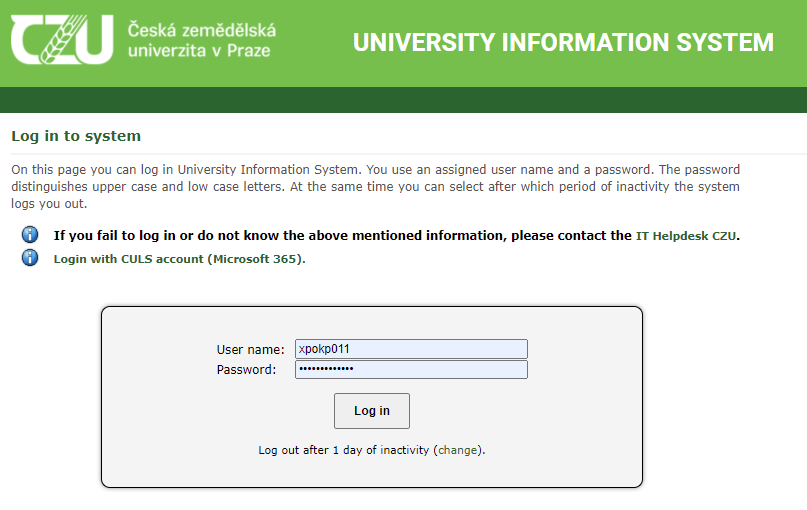
Step 1 – Log into the UIS
Go to: https://is.czu.cz/auth/?lang=en
Use the username and password from the confirmation email.
Go to: https://is.czu.cz/auth/?lang=en
Use the username and password from the confirmation email.
Step 2 – Change your password
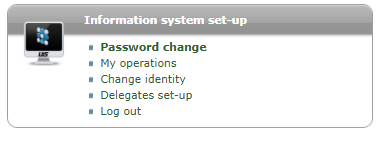
Click Password change in the section Information system set-up.
Make sure to remember your new password.
Click Password change in the section Information system set-up.
Make sure to remember your new password.
Step 3 – Open your personal details
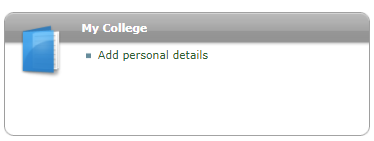
Return to the main screen and select Add personal details in the section My College.
Return to the main screen and select Add personal details in the section My College.
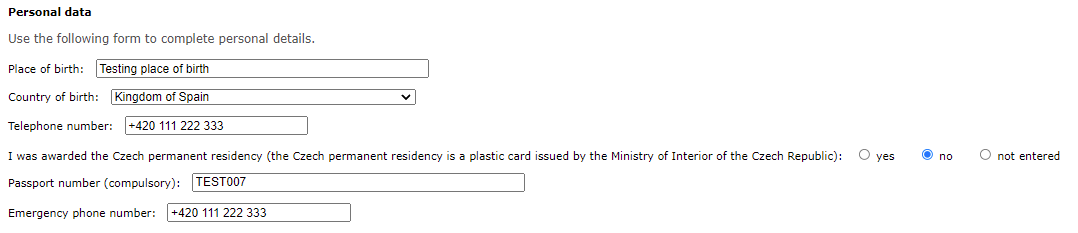
Step 4 – Fill in the Basic Information section
You will need to complete the following information:
You will need to complete the following information:

- State citizenship
- Length of stay at CZU
- Number of semesters completed at university before your mobility
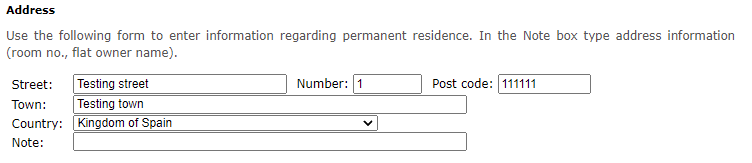
- Home address (street, number, postcode, city, country)
- Place of birth
- Country of birth
- Telephone number
- Information about Czech permanent residency
- Passport number, or ID number if you are an EU citizen

Step 5 – Upload the required documents
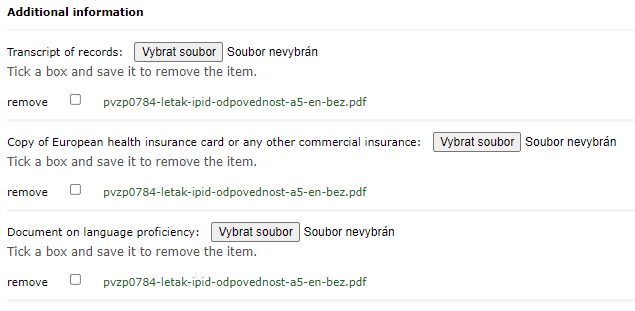
In the next section, upload the following:
In the next section, upload the following:
- Transcript of Records – official record of all passed courses at your home university
- Health insurance – EU students: EHIC card; non-EU students: commercial insurance contract
- Document on language proficiency – for example MyAcademy, TOEFL, IELTS, or confirmation from your home university
Note: If you study at Master level, upload also the results from your Bachelor studies. If you have several PDF files, combine them into one PDF.
Note: Vybrat soubor means Select a file.
Step 6 ?5– Save everything
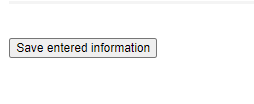
Do not forget to click SAVE after entering your information.
Do not forget to click SAVE after entering your information.
Step 7 – Upload your profile photo
Go to Enter photo and upload a passport-style photo.
Go to Enter photo and upload a passport-style photo.
If your photo does not meet the requirements, it will be rejected and you will receive an e-mail asking you to upload a new one.

Your photo must be passport-like. Example:

Examples of incorrect photos:


More details about the photo requirements are available here: smartphone-id.com